How To
GUIID (Globally Unique Item Identifier) is an NFC (Near Field Communication) chip project that allows users to store information about an item and install or retrieve that information using an NFC-enabled device, such as a mobile phone.
It’s similar to attaching an identification card to a bag or piece of luggage, but the identifier remains hidden and eliminates the need for a bulky plastic dongle to establish ownership or provide identification.
The idea is to conceal the chip without anyone knowing about it, or embed it inside the item in a way that makes it difficult to tamper with or remove.
We originally created this application for our own use, but we decided to share it with everyone in the hope that others might find it useful as well.
Compatible NFC chips
Below are the chips that we tested and are available in Amazon or Ebay.
- NTAG213 Chip 11x20mm
- NTAG215 Chip 25x40mm
- NTAG215 Chip Round 25mm
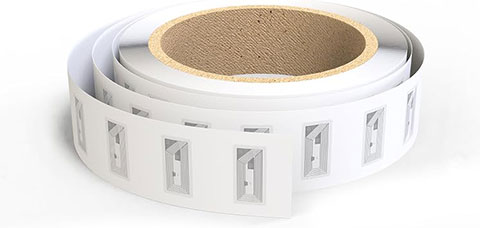 NTAG213 Chip 11x20mm
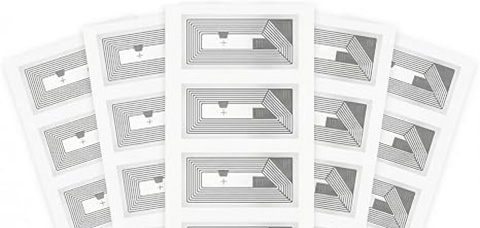 NTAG215 Chip 25x40mm
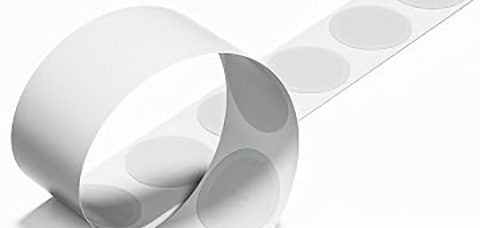 NTAG215 Chip 25mm Round
Demo Install
Item: Pickball Paddle/RacketDevice: iPhone
Download GUIID from App Store and install to your phone. If this is your first time using it, see Using the Mobile App below.
How to install NFC chip to a pickleball paddle.
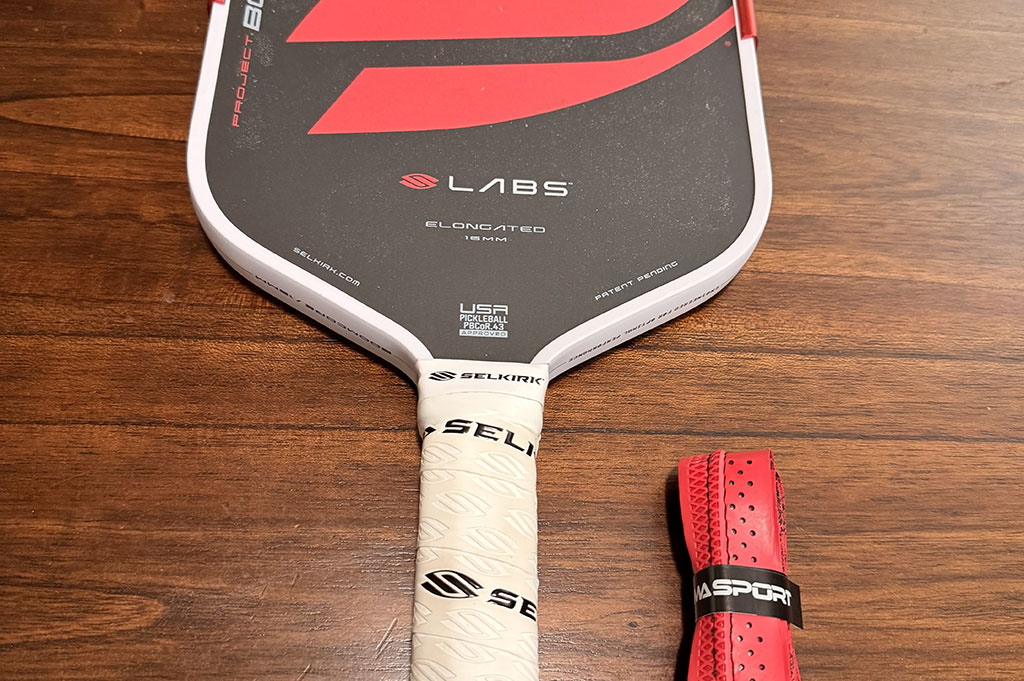 For this install, I'm going to completely replace the grip.
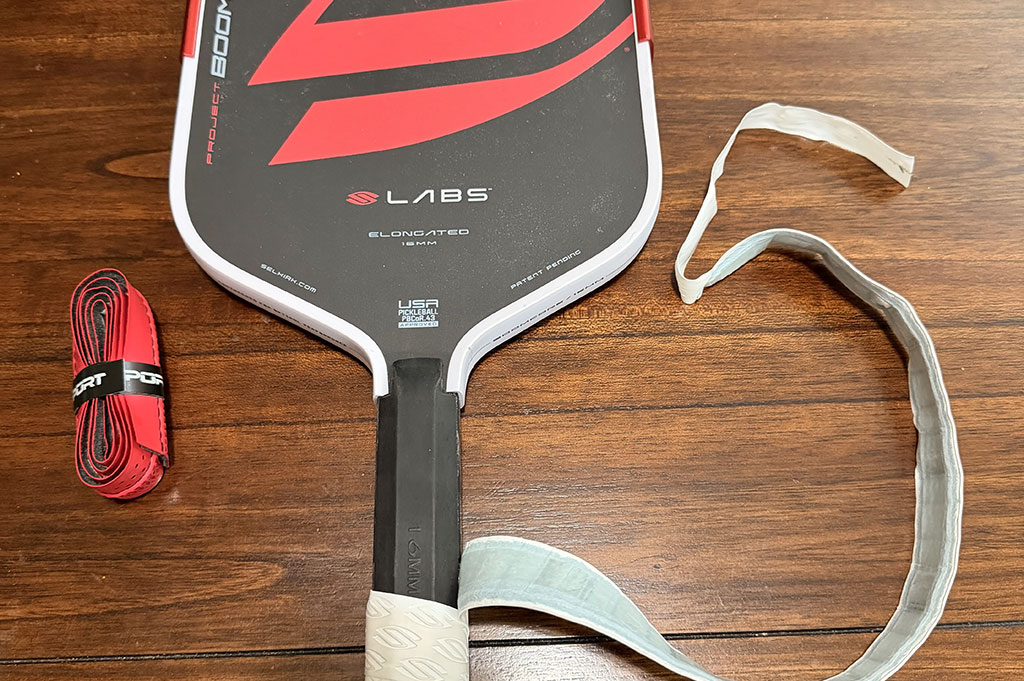 Remove tape and grip.
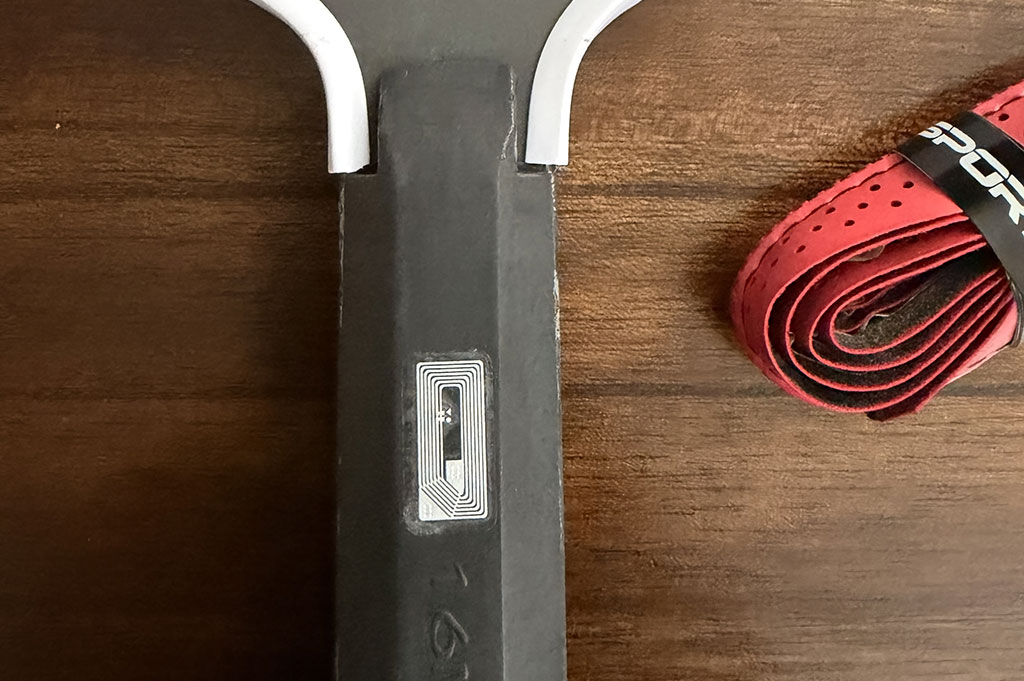 Install NFC chip.
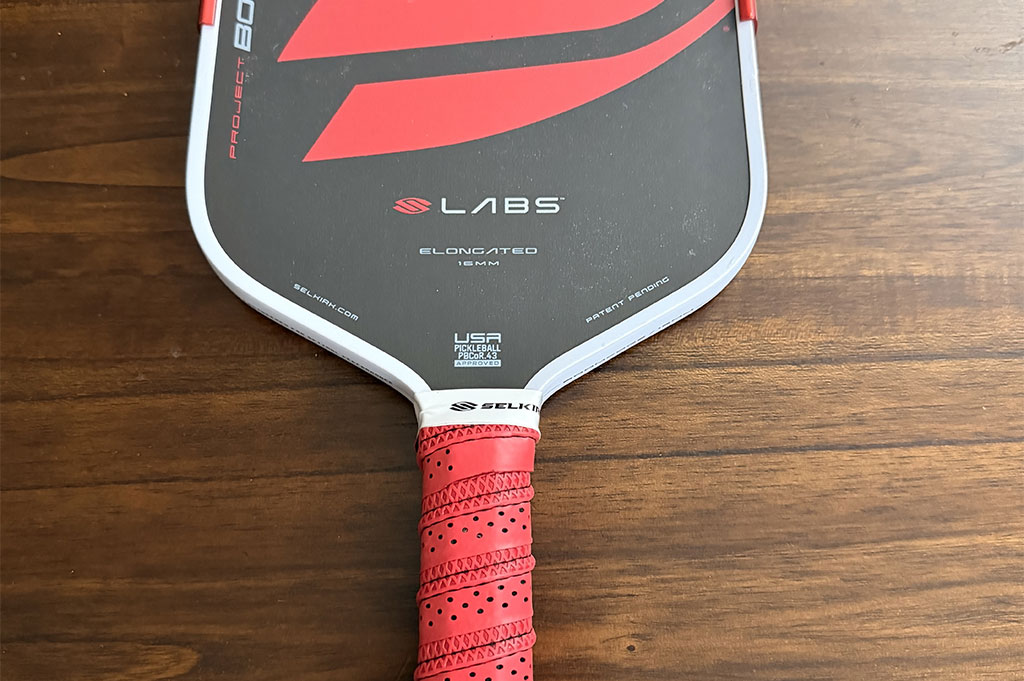 Put back grip and tape.
You can partially remove the tape and grip to install the NFC chip if you plan to keep your existing config. However, for the best results, install the NFC chip when replacing your pickleball paddle grip.
Now you can use GUIID app to program the chip. Refer to Using the Mobile App below.
Now you can use GUIID app to program the chip. Refer to Using the Mobile App below.
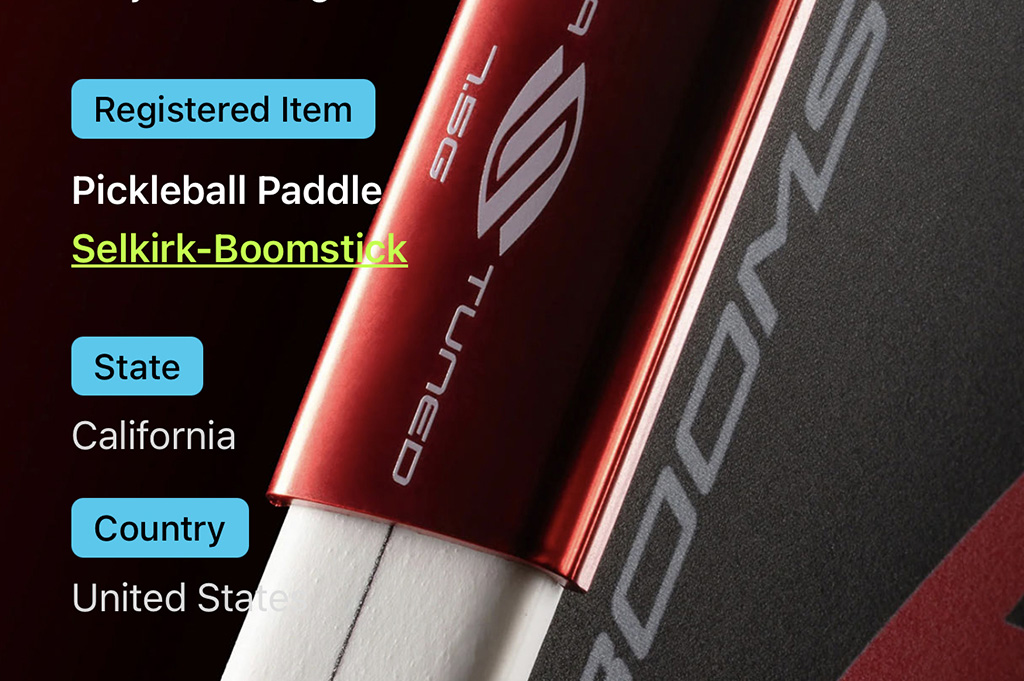 This is the result after programming NFC using GUIID App.
Using the Mobile App
Device: iPhoneDownload GUIID from App Store and install to your phone.
Launch the application
Register a new Account
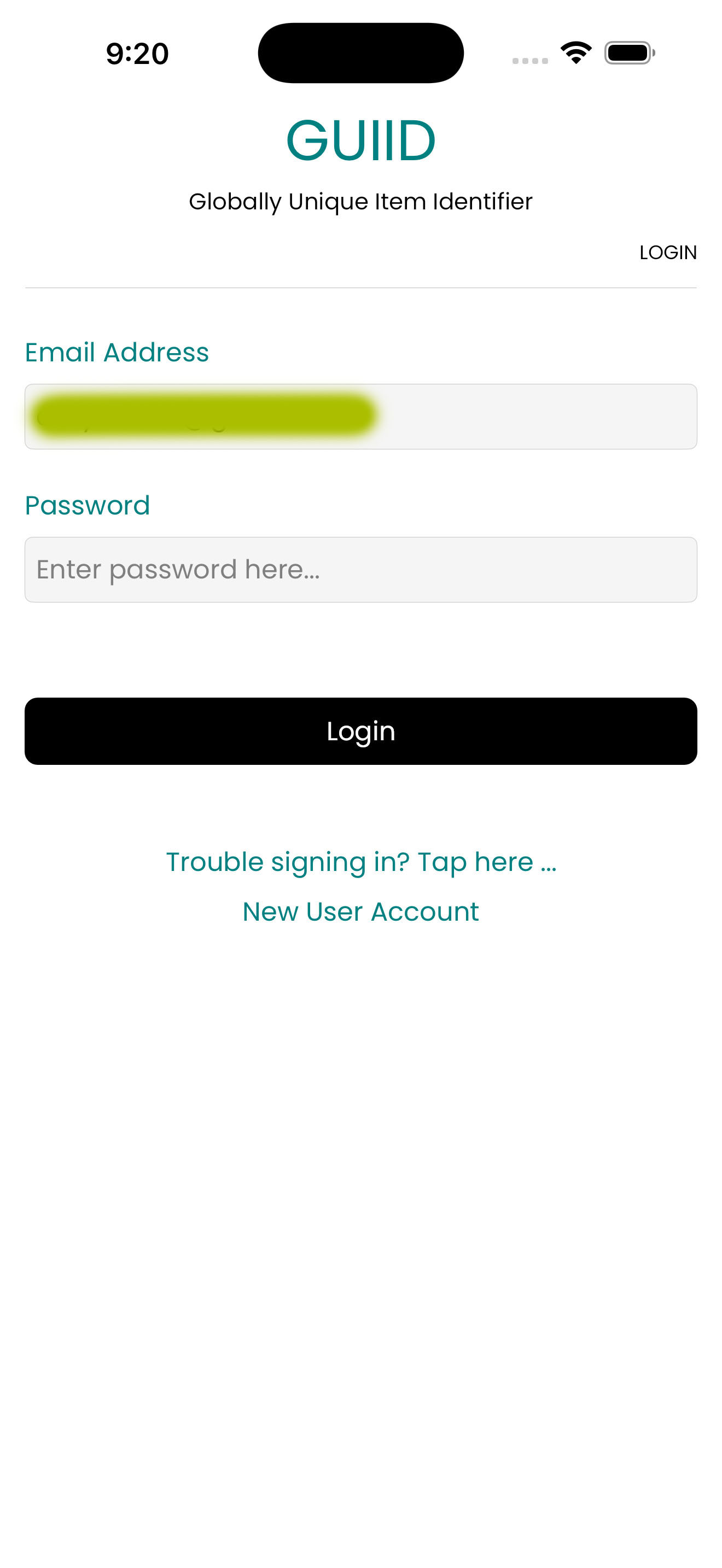 Tap on link.
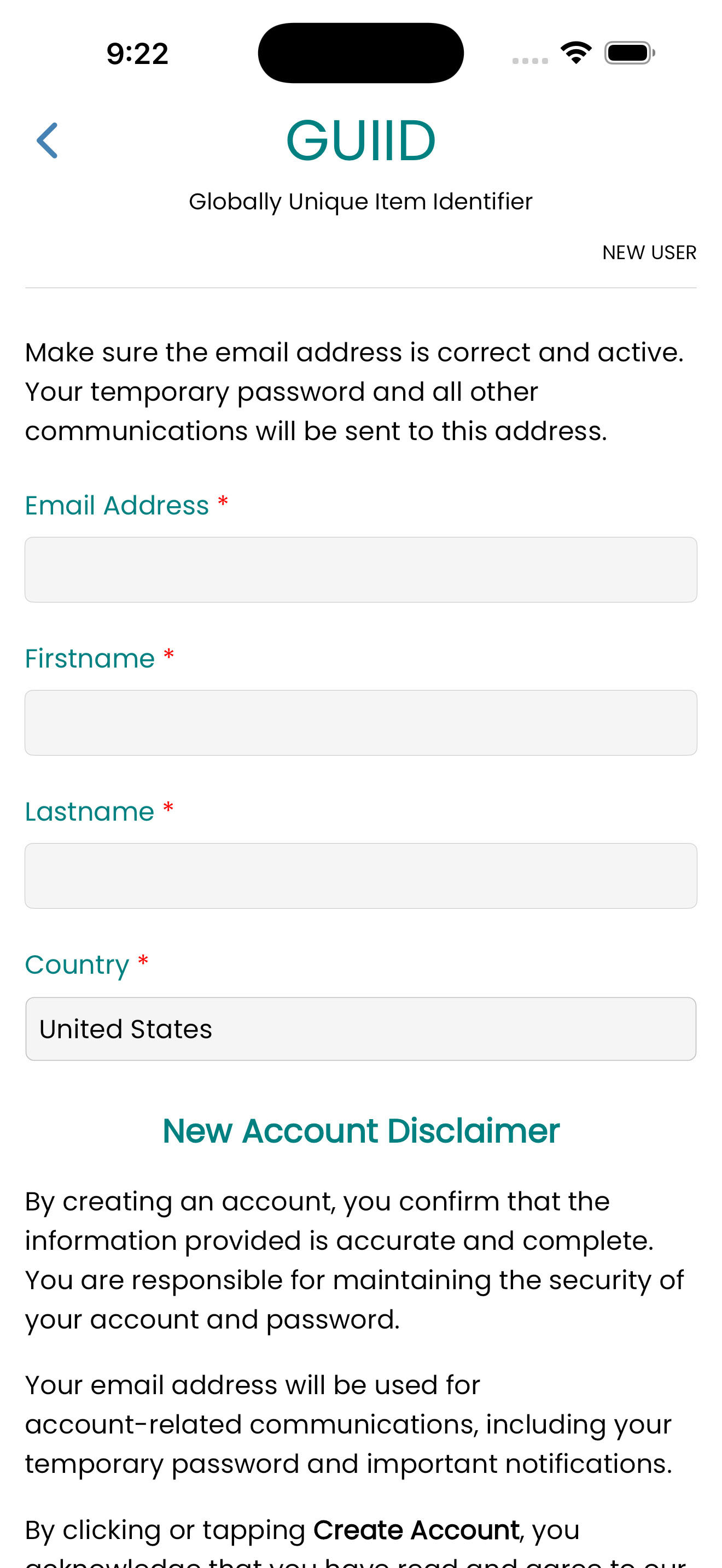 Provide required information denoted by the red * asterisk.
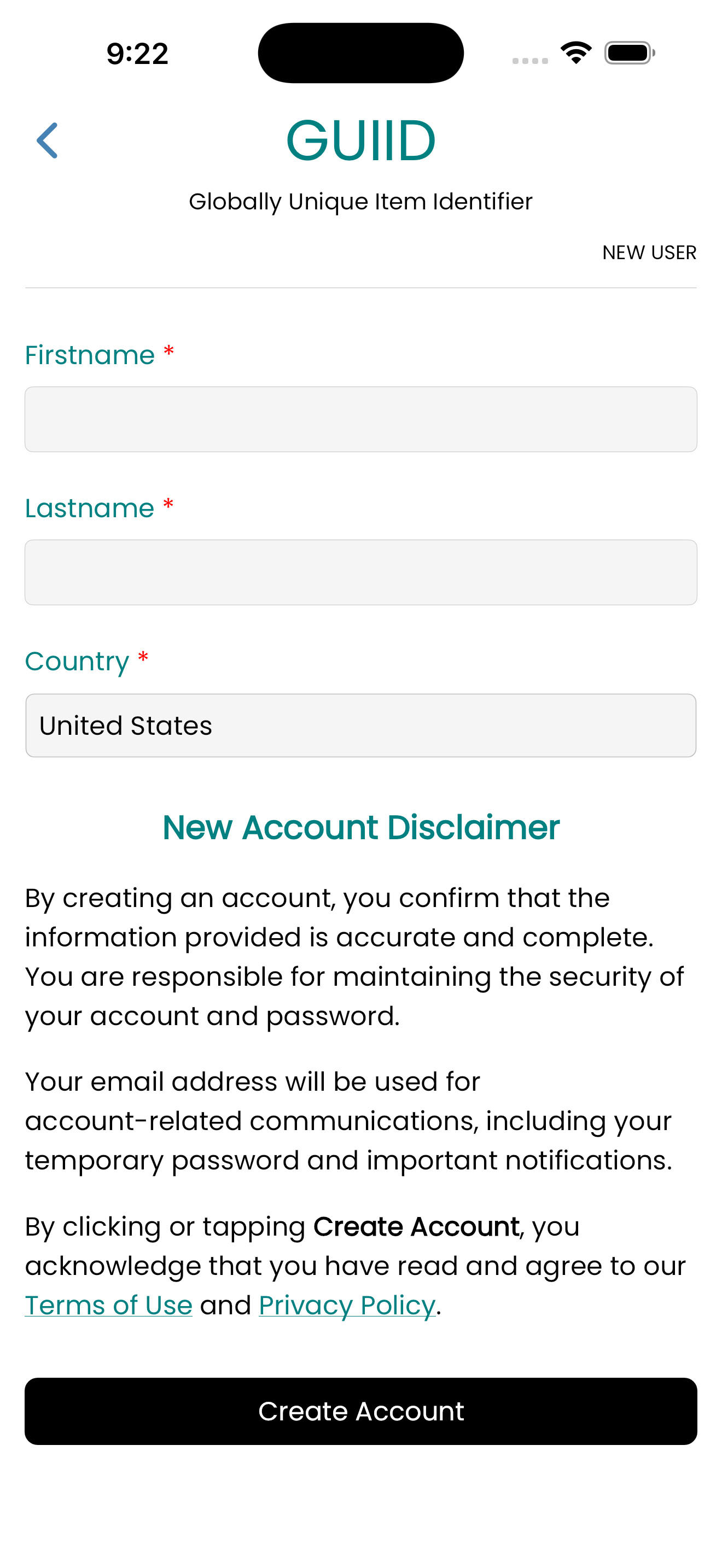 Read the disclaimer and tap on the button.
Create New Tag/Item
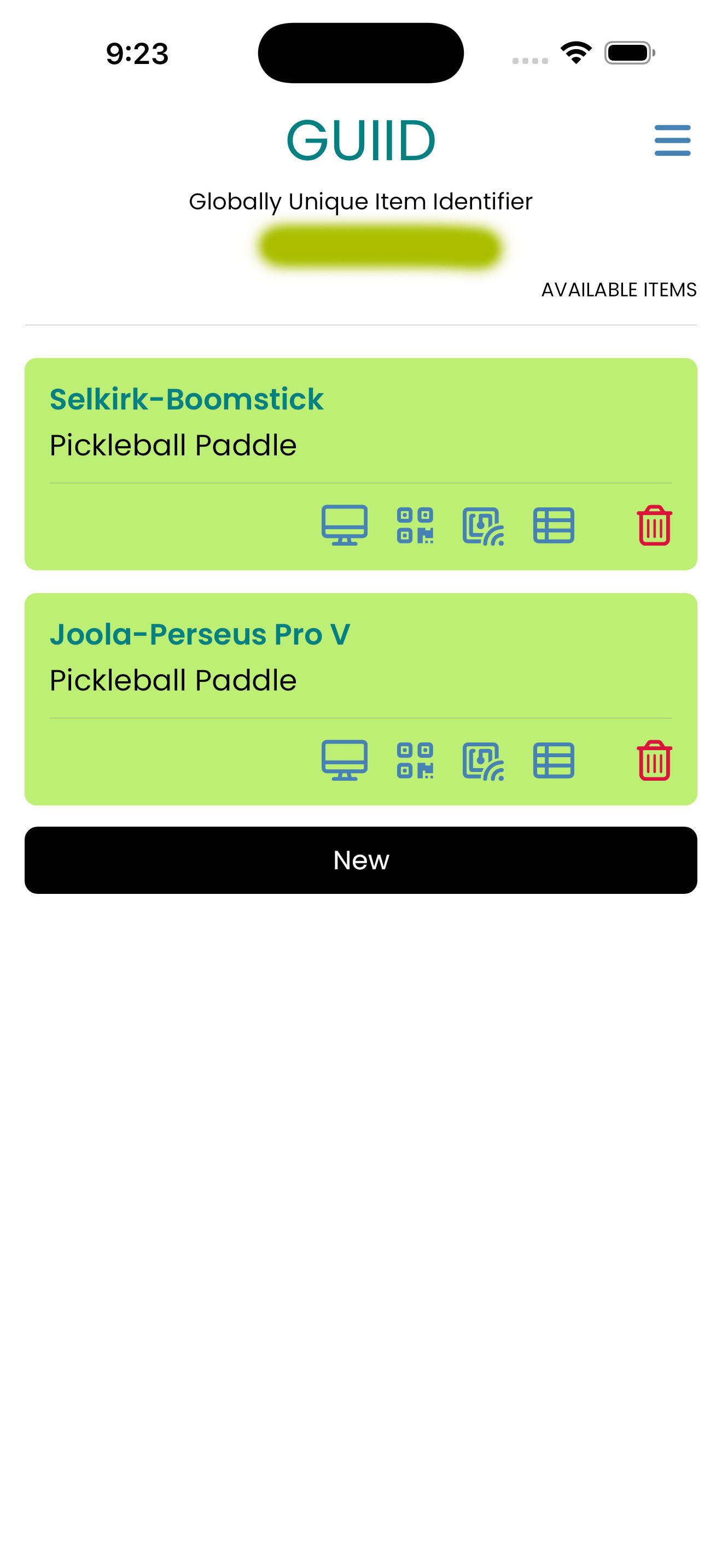 Tap on button from main screen.
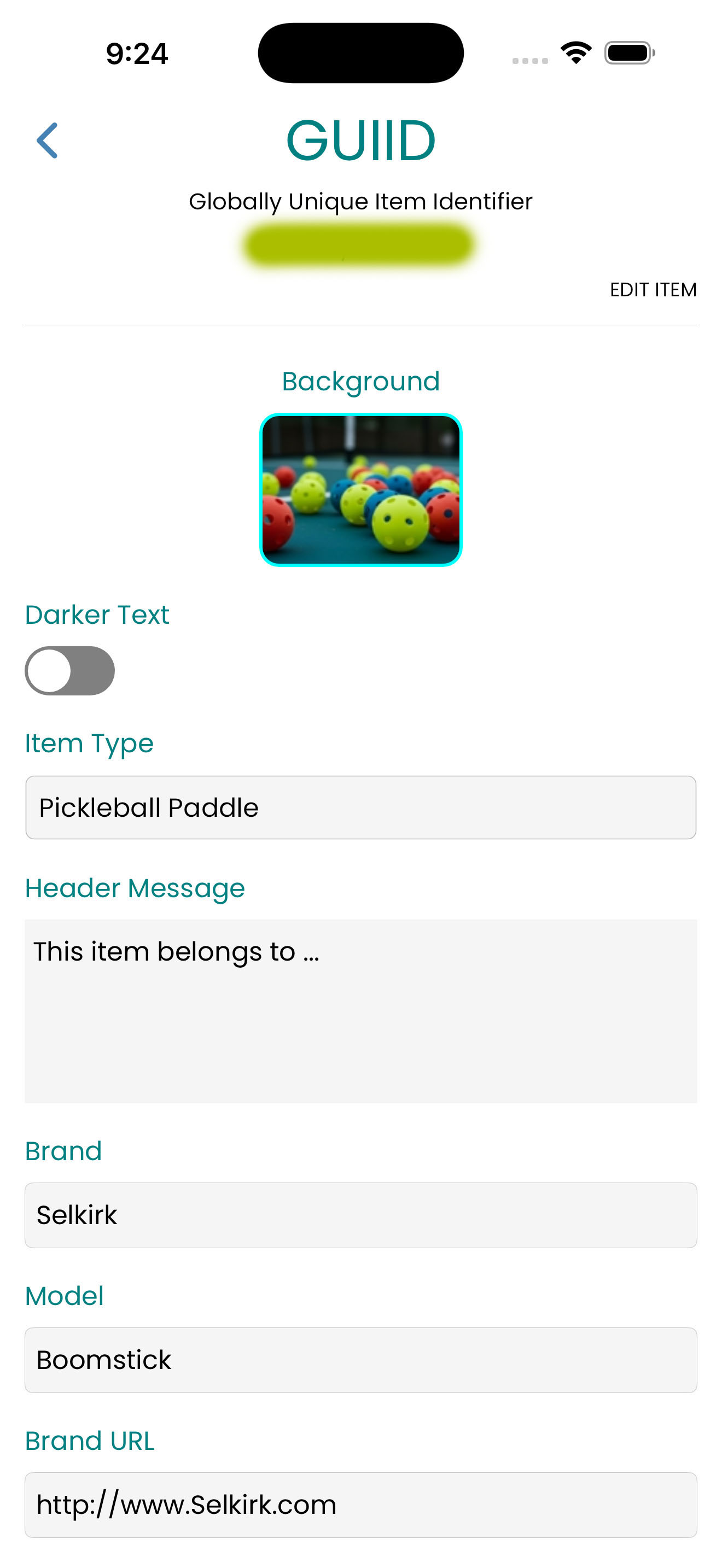 Input all necessary information about the item and scroll down to save.
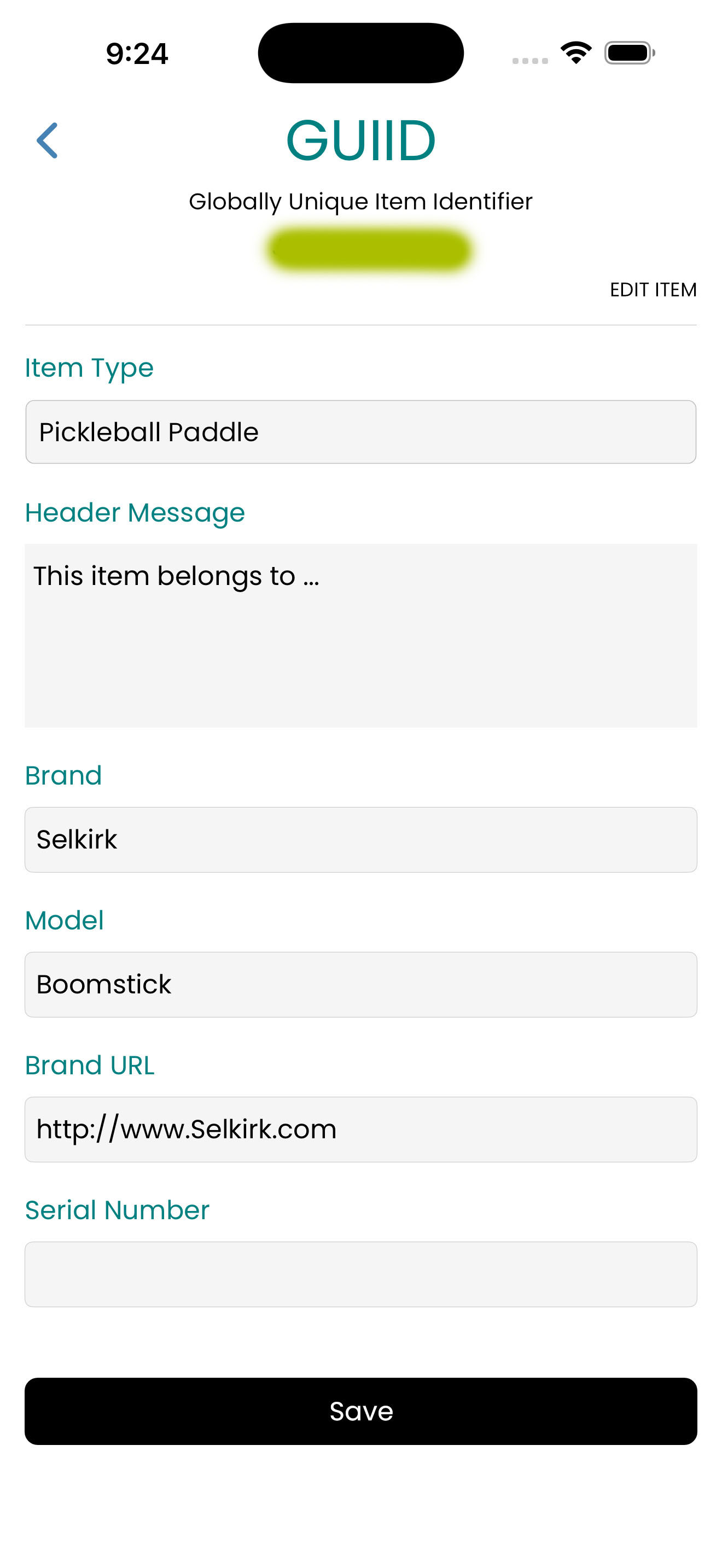 Tap on the button
Optional: Add custom field
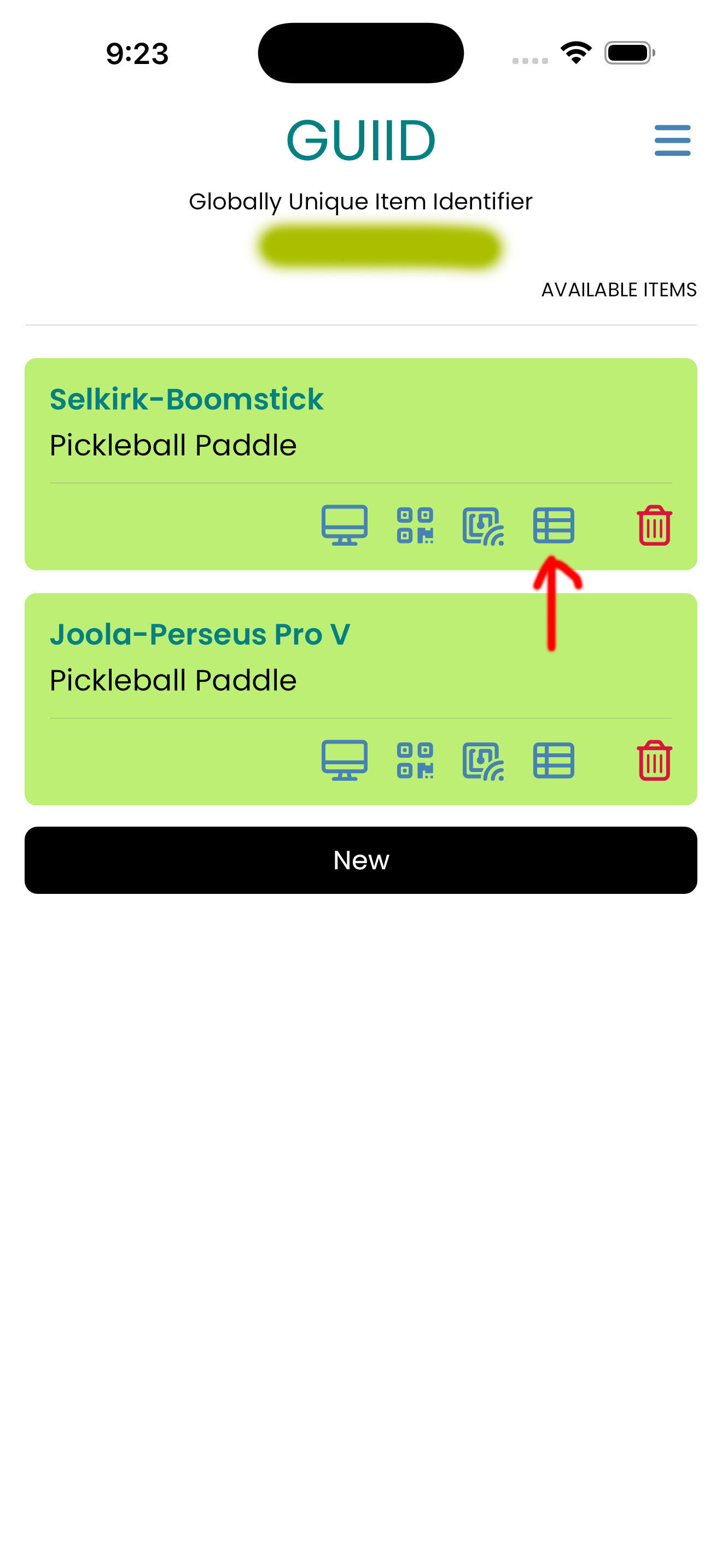 On main screen, tap one of item icon that looks like a grid.
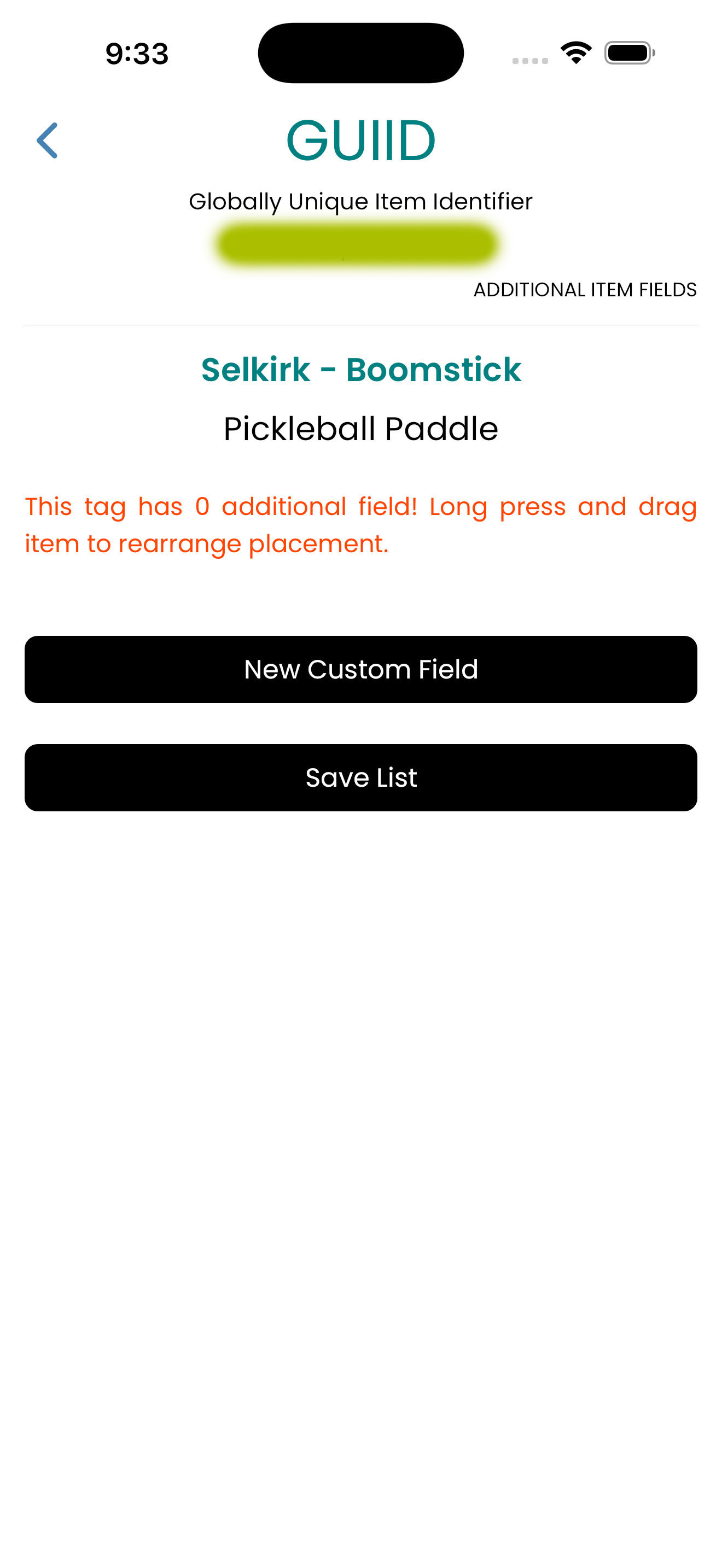 Tap on the button.
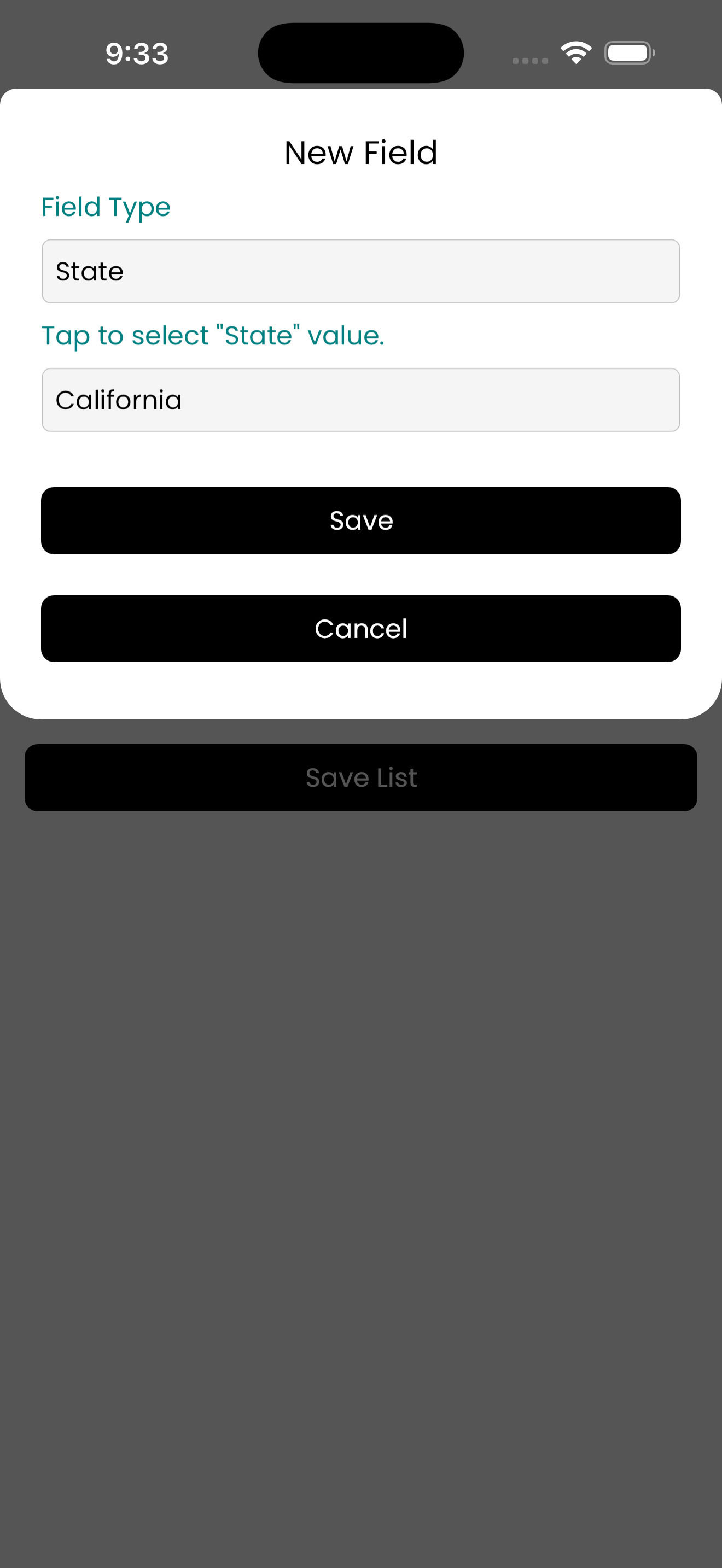 Tap , provide an initial value, tap on and finally on button.
View how information is displayed when NFC is scanned.
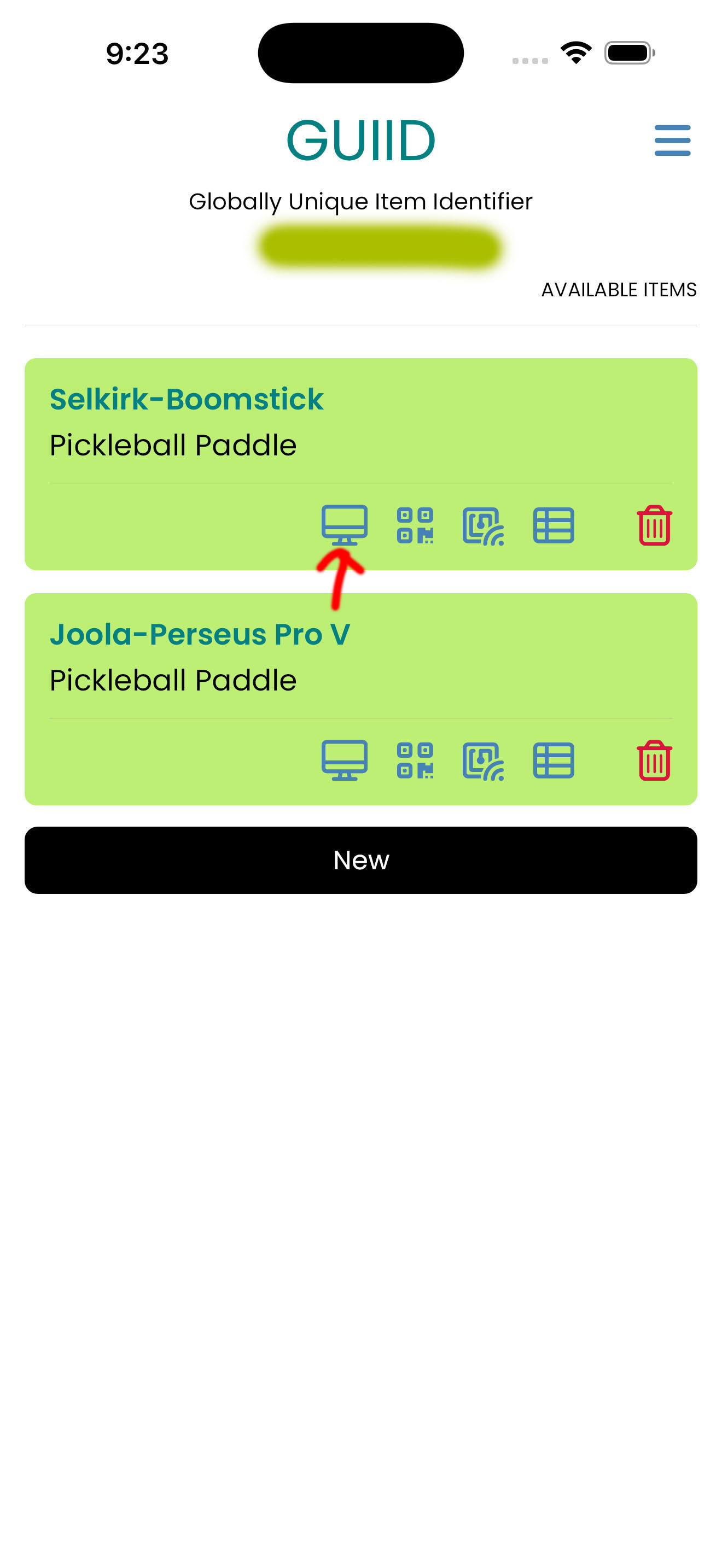 Tap on the icon pointed by the red arrow.
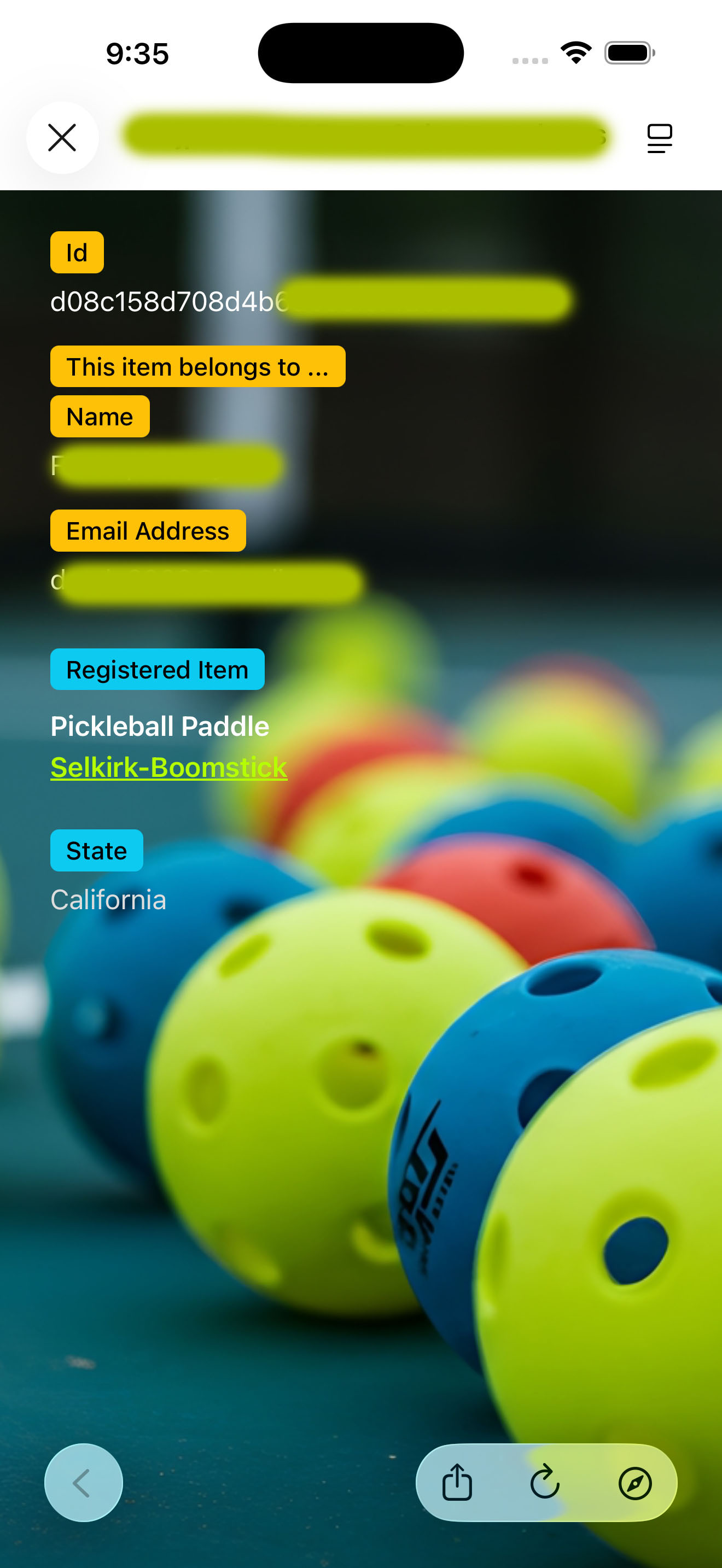 This is how the information will be presented when NFC is scanned.
Programming the NFC chip
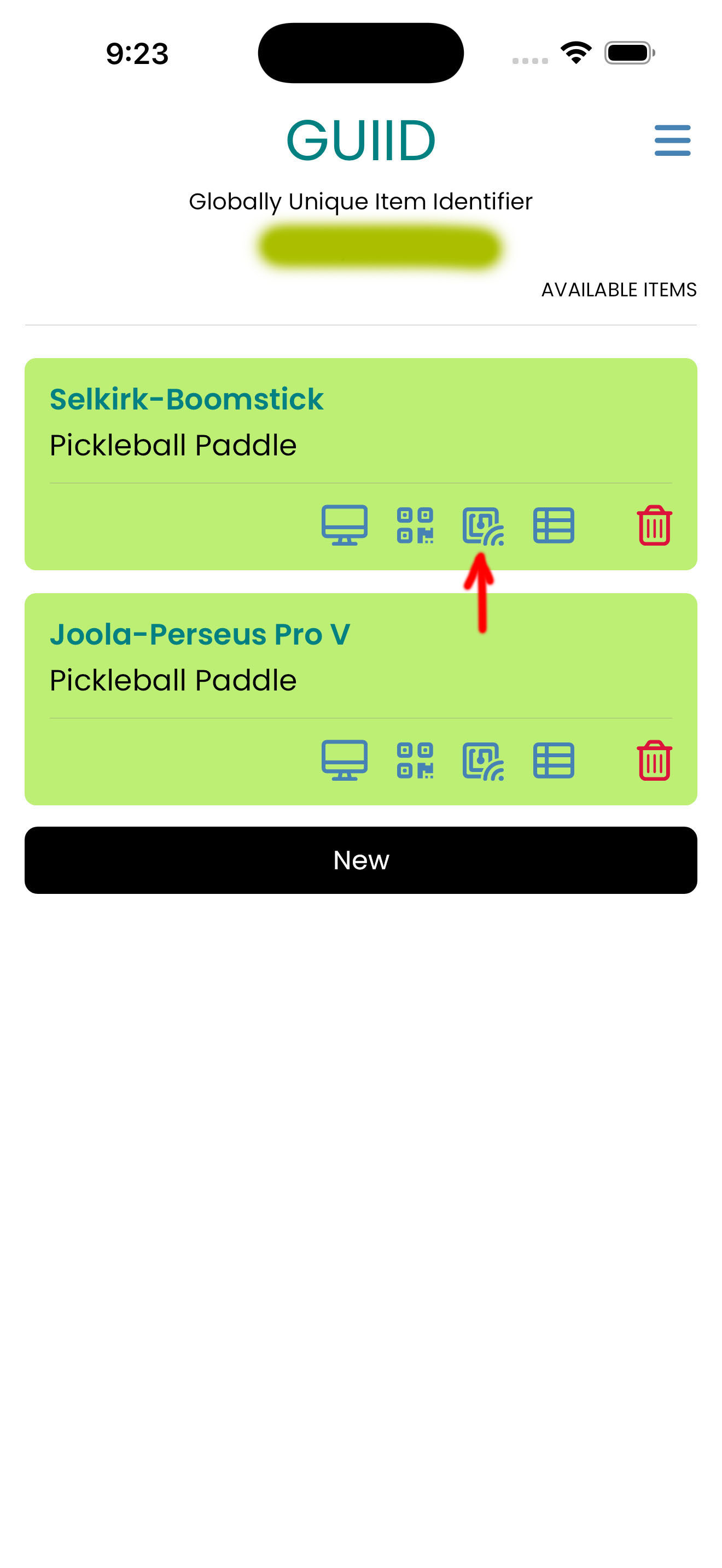 Tap on the icon pointed by the red arrow.
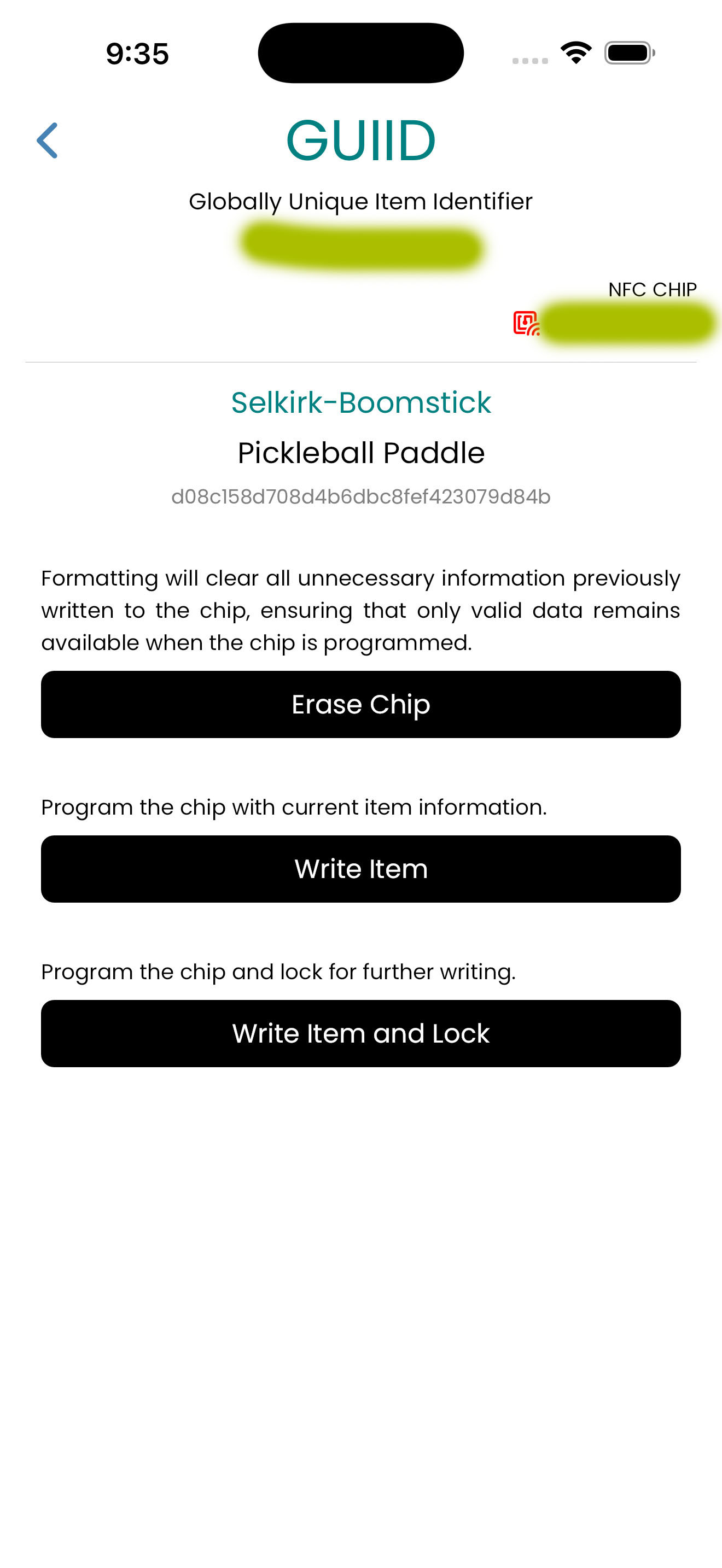
When your mobile device is NFC enabled, the status will display “Ready”.
To make sure the chip is blank, tap , then tap
To make the chip permanent and tamper-proof, tap .
Warning: This action is irreversible!!!
To make sure the chip is blank, tap , then tap
To make the chip permanent and tamper-proof, tap .
Warning: This action is irreversible!!!